To help merchants combat checkout bots, Boxify offers its users a way to configure a string that must be matched by the customer on the second shipping-address line during checkout.
Configuring this simple bot-protection measure is easy to do:
STEP 1: Visit the Boxify dashboard, click on the button marked, "Adjust preferences" and use the bot-protection drop-down list to select the special characters that you want to require customers to enter on the second shipping-address line at checkout.
STEP 2: Click on "Settings" at the left in your Shopify store admin, and choose "Checkout." Set the "Address line 2" in the "Customer information panel" to "Optional."
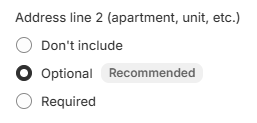
NOTE: If you are not just using Boxify but are also offering customers shipping rates from other sources (for example, a price-based free/flat rate using Shopify's built-in tools), you should set "Address line 2" here to "Required" and use Shopify's three-page checkout instead of its one-page checkout.
Making Address2 optional is problematic when using the one-page checkout and offering rates from other sources because if a customer were to fail to enter your bot-protection string, that would only prevent them from seeing shipping rates from Boxify; they might still see rates from your other sources shown to them. Using Shopify's three-page checkout with Address2 set to required prevents that.
You might be tempted to set Address2 to "Required" in all cases, but that's not a good idea if you are using Shopify's one-page checkout. That's because, should a customer fail to enter the bot-protection string, Shopify would then show "Enter your shipping address to view available shipping methods," which would be confusing.
To switch between one-page and three-page checkout, click on "Settings" at the left in your store admin, choose "Checkout" and then click on the button marked "Customize" near the top. That takes you to Shopify's Theme editor. Click on the gear icon and scroll down at the left. You'll see controls for choosing between one- and three-page checkout.
STEP 3: In this same section of your store admin ("Settings">"Checkout"), scroll down to the "Checkout language" panel and click on the button marked, "Edit checkout content."

(The following modifications should work for most shops, although your shop theme might be configured differently and require other adjustments.)
While on the "Checkout & system" tab, enter "address2" in the filter tool at the top to find the fields that control the address2 label in the "Checkout contact" section. Enter here a prompt for the special characters that you are requiring customers to enter with this bot-protection feature. For example, if you chose to use three periods as the string to match in STEP 1, set the prompt here to something like: "Prove you're human by entering 3 periods." If you want, you could add: "(Apt. # can go above.)"
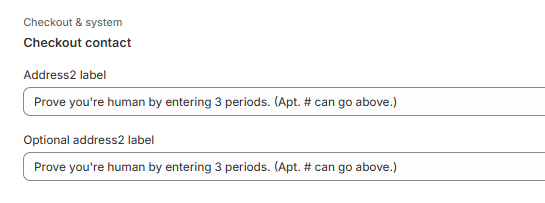
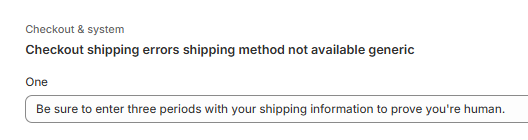
STEP 4: While on that same screen, use the filter tool at the top to search on the word "generic" to find the "Checkout shipping errors shipping method not available generic" section.

In the "One" field of this section, enter a prompt like: "Be sure to enter three periods with your shipping information to prove that you are human."
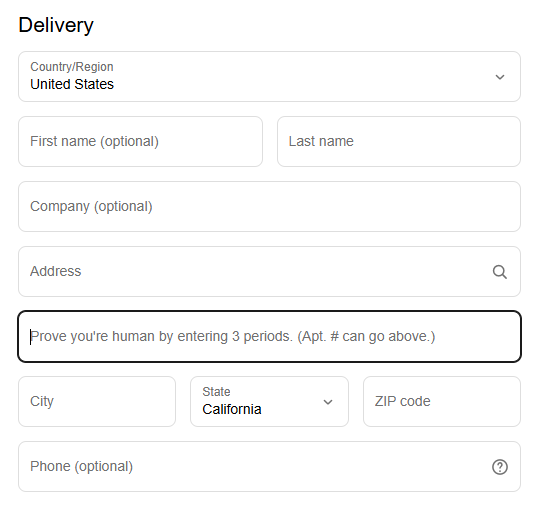
By setting the address2 labels in this way, customers going to your checkout page will see something like this prompting them to enter the special characters needed to view shipping rates from Boxify.
Don't delay in making these changes in Shopify, because after you carry out STEP 1, Boxify will ignore requests for shipping rates it receives for your store if the second shipping-address line doesn't contain the special bot-prevention string that you had set in your Boxify preferences. This includes requests that Shopify sends to Boxify for draft orders. So when preparing a draft order, as a final step when you are ready to apply a shipping rate from Boxify, set your bot-protection string (and nothing else) on the second shipping-address line. If you need to add an apartment or suite, include that on the first shipping-address line.
Boxify offers various options for a bot-prevention string using periods, equal signs, and underscore characters. You are, of course, free to edit out these characters from the second shipping-address line on your orders in your store admin if you find these characters obtrusive. Because Shopify doesn't allow the billing address on an order to be edited, Boxify doesn't allow more complicated bot-preventions strings, such as one containing numbers, which might interfere with credit-card validation that uses the billing address.
Note that Boxify does not apply its bot-protection test to requests for shipping rates that don't have a city specified in the shipping address. This ensures that Boxify will process requests from in-cart shipping calculators (for which street addresses and city names are not provided), even though they lack the bot-protection string in address2.
Boxify also does not apply its bot-protection test to requests for shipping rates triggered by customers who are logged in to a store. So those requests will not be flagged as being from bots, even though the saved addresses of these customers may not not include your bot-protection string on the second address line.
Note, however, that the various addresses used for accelerated checkouts (Shop Pay, Google Pay, Apple Pay) will likely not include your bot-protection string on the second address line. So you shouldn't offer accelerated checkout options while you have Boxify's bot protection in place.